Workstation guide
Laptop Stand Ergonomics: What to Look For Before You Buy
Published: · By Moda Selection editors
A laptop stand can lift a screen and clear a little desk space. It cannot, by itself, turn a laptop into a comfortable full-day workstation. Once the screen goes up, the keyboard goes up too—and that is where the rest of the setup matters.
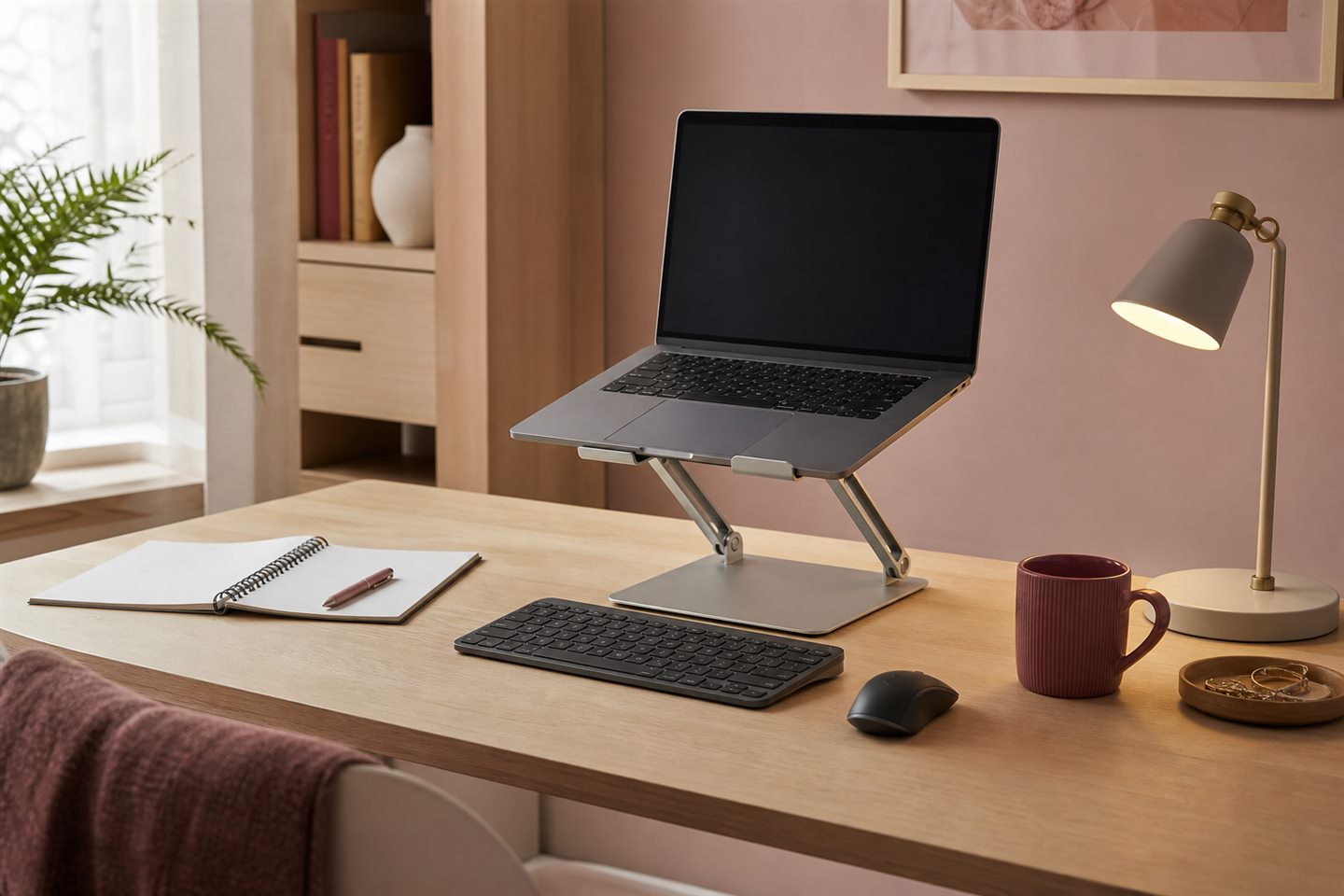
The screen should meet your eyes, not pull your neck
OSHA guidance places the top of a monitor at or slightly below eye level, with the screen directly in front and generally about an arm's length away. Treat those as starting points, not a pose you must hold perfectly. Glasses, screen size, and the work you do can change the comfortable position.
Set the chair first, then the stand. If you lift the laptop while sitting on a dining chair that is too low for the desk, you may trade a bent neck for raised shoulders. Use a few normal documents and browser windows while adjusting; the posture you adopt during actual work is more revealing than the one you arrange for a photograph.
Long typing sessions need a separate keyboard and mouse
Raising the laptop screen also raises and angles its keyboard. For prolonged work, OSHA recommends an external keyboard and input device so the screen and hands can be positioned separately. Your shoulders should stay relaxed, elbows near the body, and wrists roughly in line with the forearms.
Choose adjustability over a photogenic fixed angle
A stand with useful height and tilt adjustment is easier to fit to different chairs, desks, and people. Adjustment should lock securely without wobbling when you type a quick search or touch the trackpad.
Small increments matter more than an impressive maximum height. Check whether you can change the stand without tools and whether the hinges remain firm under the weight of your laptop. Reviews that mention sagging are more useful here than a list of theoretical angles.
Check the base before the top
Measure the footprint and the space needed for an external keyboard. A beautiful stand that pushes the keyboard to the desk edge may make the setup worse. On a small desk, a stand with open space underneath can hold a dock or notebook, but only if cables still have a clean route.
Ventilation and compatibility matter
Do not cover the laptop's vents. Check the stand's supported device size and weight, lip depth, and whether thick cases fit securely. Rubber contact points should hold the computer without pressing controls or scratching the finish.
Portable stands make different compromises
A folding stand is useful between home and office but may offer fewer height choices or less stability. If it lives in a work bag, count the keyboard and mouse too. Portability is the weight of the full solution, not the stand alone.
Test the whole setup before the return window closes
Work for an hour, take a break, and notice what you keep adjusting. Does the screen feel too far away when text is small? Does the stand bounce during video calls? Is the external keyboard now competing with a notebook for the same narrow strip of desk? Those annoyances rarely disappear because the stand looks good.
A useful laptop stand should make the setup quieter: fewer neck dips, less shuffling, and an obvious place for each device. If it introduces a new collection of compromises, a monitor arm, a lower stand, or simply shorter laptop sessions may suit the space better.
A stand does not replace movement
No desk accessory removes the need to change position. Arrange work so you can look away, stand, or take brief recovery pauses. Comfort is a moving target during a long day.